Library
AI Tools

Pointing and Talking: The New Way to Run Your Workflow

Your mouse cursor is no longer just a clicker. Paired with AI and voice, it becomes a way to give instructions with context, so you stop explaining every step and start pointing at what you mean. This page breaks down how the point-and-prompt approach actually works day to day.

The short version

  • Your cursor position gives the AI context so you say less and get more done.
  • Point at a calendar button, speak the event, skip the tab switching entirely.
  • The same pattern works for code edits, email drafts, and scheduling.
  • Less typing full explanations, more gesturing at what you actually mean.
  • Small friction removed on repeat tasks adds up over a full workday.

Going deeper

Your cursor is a pointer in the literal sense

Most AI tools make you describe everything from scratch. You type out where you are, what you see, what you want. That is a lot of overhead for a small task.

The shift here is simple. Where your cursor sits becomes part of the instruction. Hover over a calendar button and the AI already knows the subject is scheduling. You just fill in the detail with your voice.

I think that is the part people underestimate. Context you would normally type is now supplied by pointing.

How the point-and-prompt loop actually plays out

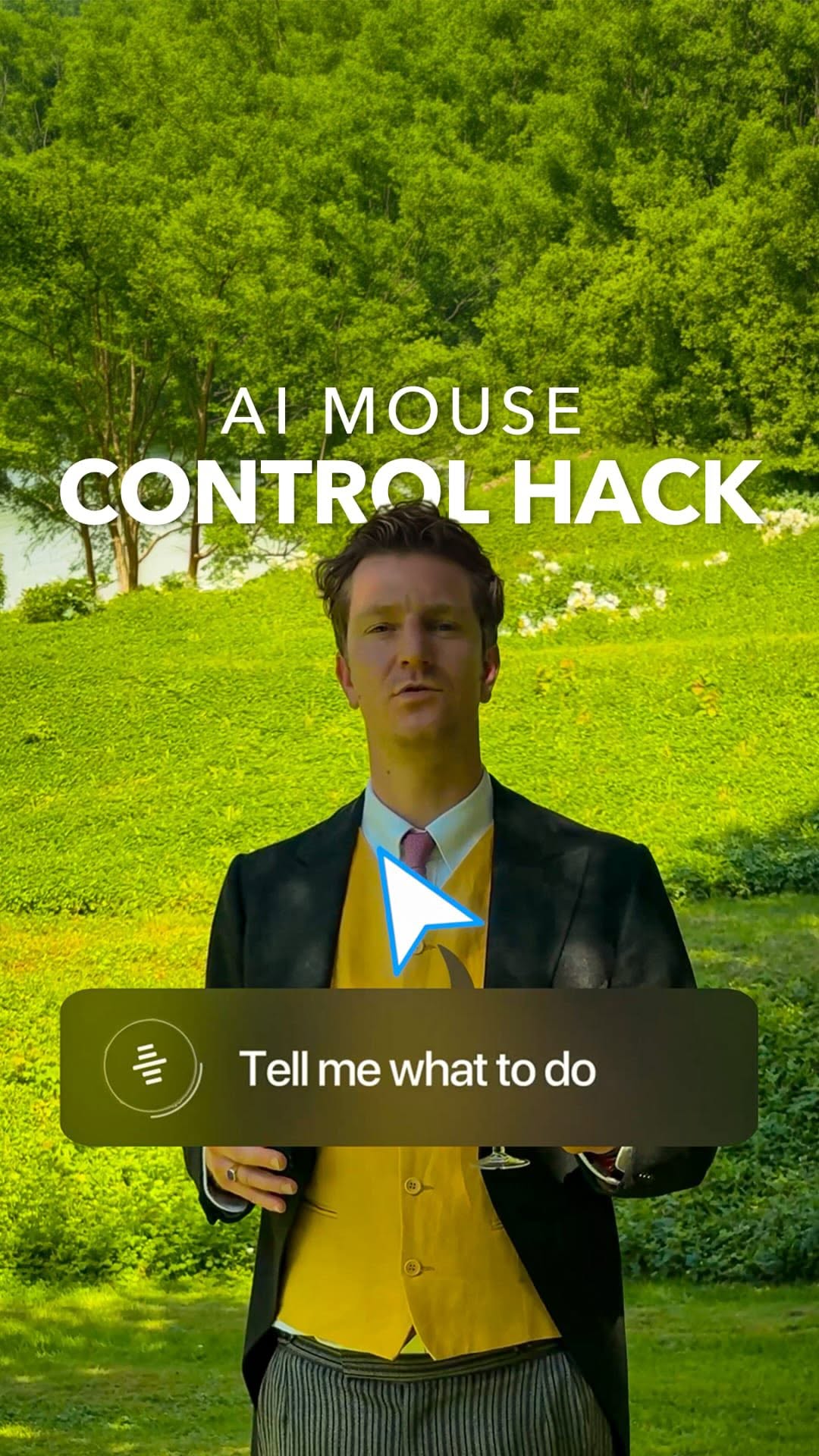
Picture the calendar example from the reel. You move the cursor to the new event button and say something like create a meeting for 7pm Monday. That is the whole interaction.

No tab switch, no clicking into fields, no re-typing a date you can see on screen. The position anchors the intent and the voice handles the specifics.

The same loop repeats across tasks. Point at a block of code, say what should change. Point at a draft, say make this shorter and less formal. The pattern is consistent even when the task is not.

Where this fits with tools like Cursor

Coding is where a lot of this maturity showed up first. Cursor built its reputation on letting you point AI at your actual project instead of pasting snippets into a chat window elsewhere.

People who use it well tend to set up rules files that tell the AI how their specific project works. That way the AI is not guessing about your conventions every time.

Cursor also added automations that let agentic tasks be built, scheduled, and run in the background. My read is that voice-and-cursor control is the front-end version of the same idea: give the AI enough situational awareness that you barely have to spell things out.

The honest limits

This is not magic and it does not replace knowing what you want. If you point vaguely and speak vaguely, you get a vague result. The AI reads context, it does not read minds.

Voice also has its off days. Background noise, an accent it stumbles on, a phrase it misfires. For fast repeat tasks it saves real time. For anything precise you will still want to check the output.

Start with the tasks you do ten times a day. Scheduling, quick email replies, small edits. Those are where the friction you remove adds up.

Why this beats explaining everything

Explaining a task in full is exhausting. You have to reconstruct in words something you can already see with your eyes. That gap is where most AI interactions feel slower than just doing it yourself.

Pointing closes the gap. You show instead of describe. The cursor does the heavy lifting of saying where, your voice handles the what.

It feels less like operating software and more like handing a task to someone standing next to your screen. That small change in feel is what makes people actually keep using it.

Want to go deeper?

Let's look at it together.

One call, one on one. We take this and apply it to your account or your workflow.

Book a call

Sources