Library
Automation

Connect ChatGPT to Google Sheets With Apps Script

A practical walkthrough on wiring ChatGPT directly into Google Sheets using Apps Script. You write a custom function once, then call AI from any cell. No more copy-paste loops between two tabs.

The short version

  • A few lines of Apps Script turn ChatGPT into a spreadsheet formula you can call from any cell
  • Your prompt and your data live in the same place, so no more tab-switching
  • You only build the function once - then it works across the whole sheet
  • Watch your API costs, because every cell that calls the function is a request
  • This is most useful for repetitive tasks like tagging, summarizing, or classifying rows

Going deeper

The copy-paste loop is the actual problem

Most people do not have an AI problem. They have a workflow problem.

You have data sitting in a spreadsheet. You copy a cell, paste it into ChatGPT, type a prompt, copy the answer back, and repeat. Forty rows later you have lost an hour and your patience.

The fix is to stop moving data between two windows and bring the model to where the data already lives. That is what Apps Script lets you do.

How the connection actually works

Google Apps Script is the JavaScript layer baked into every Google Sheet. You reach it through Extensions, then Apps Script.

Inside there you write a function that takes a cell value and a prompt, sends both to the OpenAI API using UrlFetchApp, and returns the response. Add your API key, save, and that function becomes available in the sheet itself.

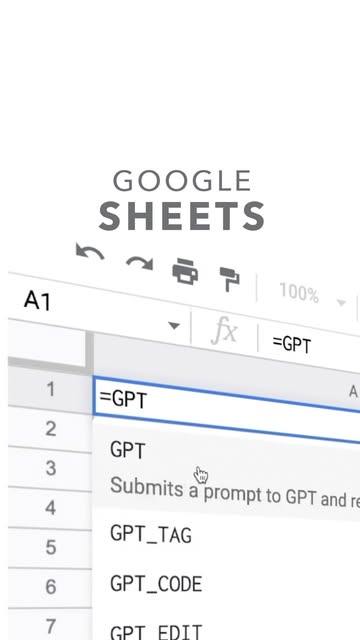
Then in any cell you type something like =CHATGPT(A2, "summarize this in one line"). The result fills in like a normal formula. Sheetgo and a handful of community guides walk through the exact setup if you want a reference build.

What to actually use it for

This shines on repetitive, structured tasks. Tagging a column of customer messages by sentiment. Pulling a company name out of a messy email field. Writing a first-draft product description from a list of features.

My read is that the value scales with how boring and repeatable the task is. A hundred rows that each need the same small judgment call - that is where it earns its keep.

It is not built for deep one-off analysis. For that you are better off in the chat window with full context.

The part people skip until the bill arrives

Every cell that calls your function is a separate API request. That matters more than people expect.

Drag the formula down a thousand rows and you have fired a thousand requests, each costing tokens. I keep seeing people test on five rows, get excited, then run it across a giant dataset without thinking about cost or rate limits.

Two habits help. Convert results to static values once they are correct, so the formula stops re-running. And test your prompt on a small batch before you let it loose on the whole sheet.

Why Apps Script is worth learning anyway

Apps Script stays quietly underrated, and the AI use case is only one reason.

It is free, it runs inside tools you already use, and it lets a non-engineer automate things that used to need a developer. Once you have written one custom function, the mental model clicks and you start seeing other small jobs you can hand off.

That is the real win here. Not the ChatGPT integration itself, but the moment you realize your spreadsheet can do work for you while you are outside enjoying the summer.

Want to go deeper?

Let's look at it together.

One call, one on one. We take this and apply it to your account or your workflow.

Book a call

Sources